Getting started
Installation
Three steps and a couple of minutes, after that the phone connects on its own.
What you need
- A PC with Windows 10 or 11, 64-bit.
- A phone with Android 10 or newer.
- A shared Wi-Fi network or a USB cable.
Rulik Server on the PC
Download rulik-server.exe from the Download page and run it. Nothing to install.
- The server window shows the PC's address and a PIN.
- If there's a driver warning, press "Install driver" and restart the server. Without the ViGEmBus driver only mouse and keyboard work.
- When Windows asks about the firewall, allow access on private networks.
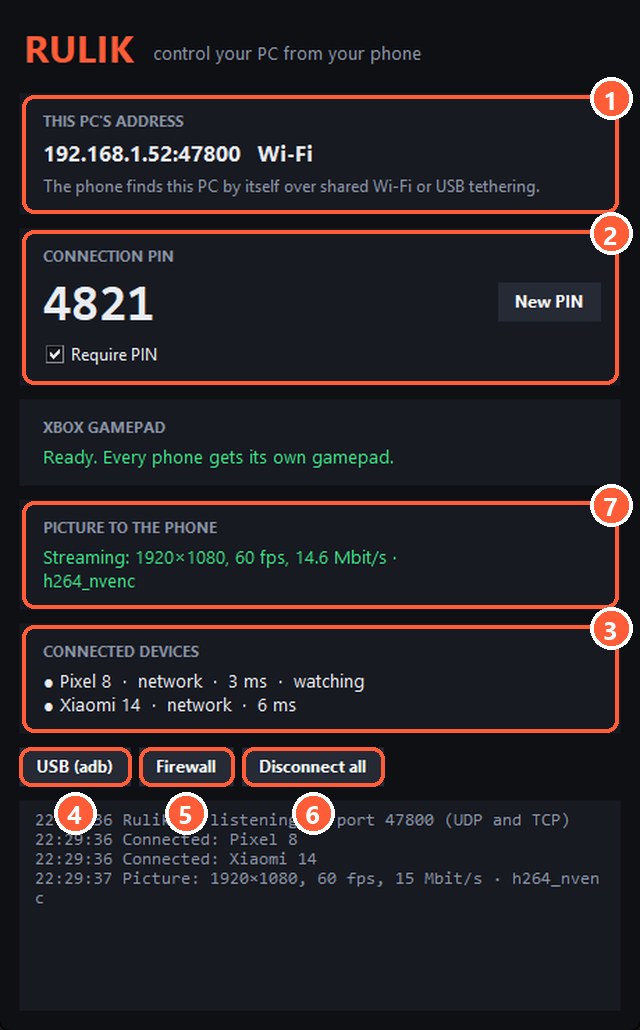
- 1The PC's address: you can type it into the phone manually
- 2Connection PIN and the "New PIN" button
- 3Connected phones
- 4Cable connection through adb
- 5Firewall rule, if the phone can't see the PC
- 6Disconnect all phones
- 7Picture to the phone: needed to play on the phone
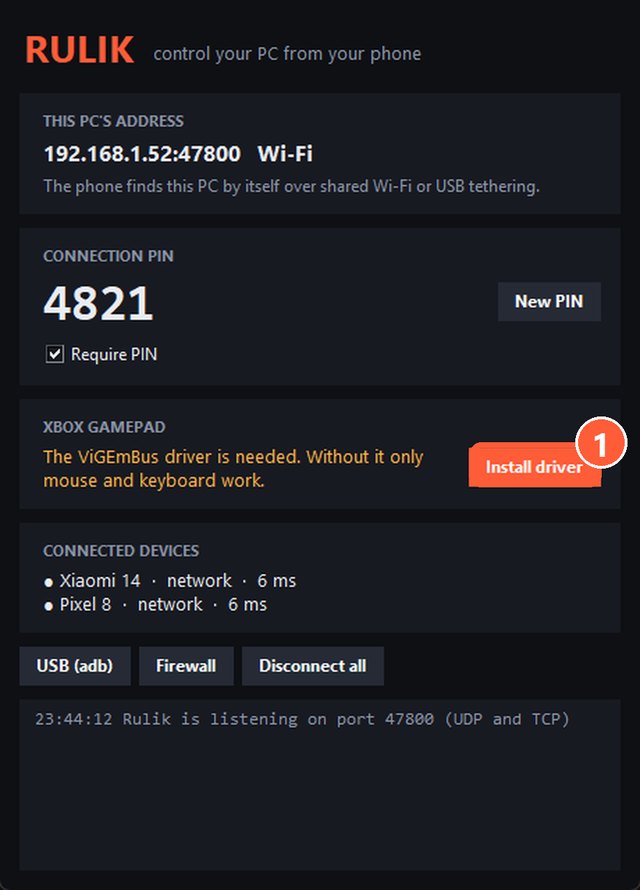
- 1Press "Install driver", then restart the server
Tray and autostart
The close button hides the server window to the tray next to the clock: the server keeps running, and the phone stays connected. Click the icon to open the window, right-click it and pick "Exit" to quit.
The "Start with Windows" checkbox at the bottom of the window turns on autostart: when the PC boots, the server starts straight in the tray and waits for the phone.
The app on your phone
Download rulik.apk from the Download page and open the file. Android will ask you to allow installs from your browser or file manager.
First connection
- Your PC shows up on the PC tab. Tap it.
- Enter the PIN from the server window.
- On the Home tab, pick a layout, for example "Xbox gamepad", and tap "Control the PC".
- In the game's control settings, pick gamepad.
Want to play looking at the phone instead of the monitor? Tap "Play on the phone", more in Play on the phone.
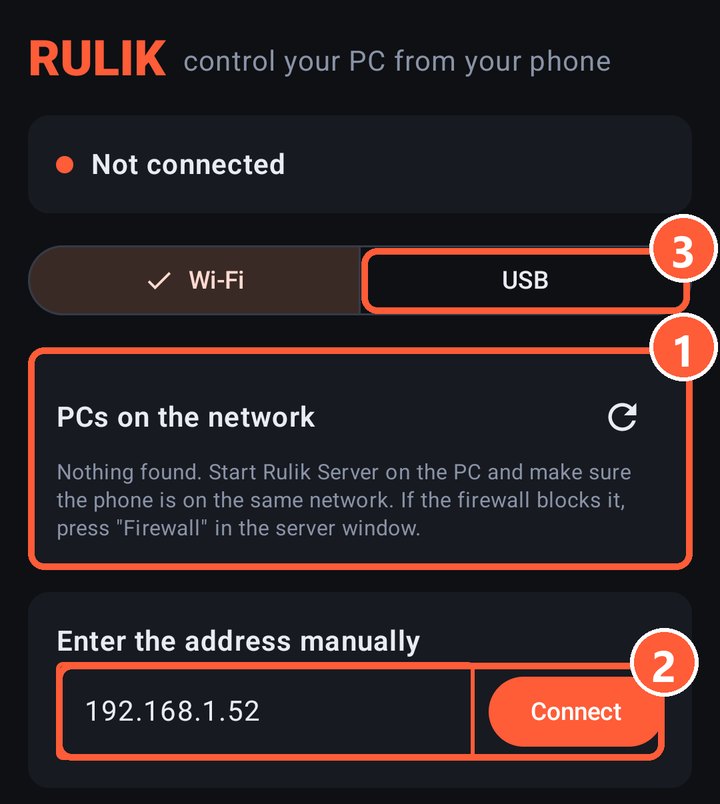
- 1PCs found on the network: tap yours
- 2If your PC wasn't found, type the address from the server window and tap Connect
- 3Cable connection through adb
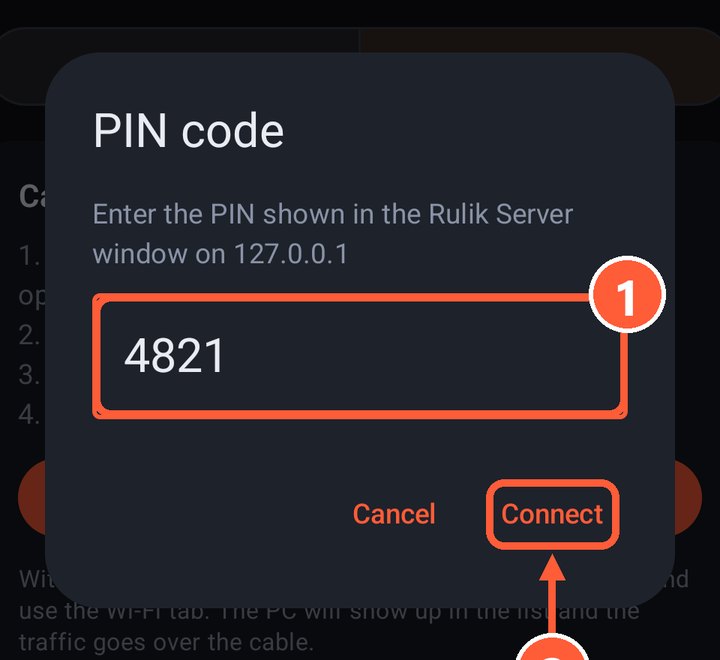
- 1The PIN from the server window
- 2Connect
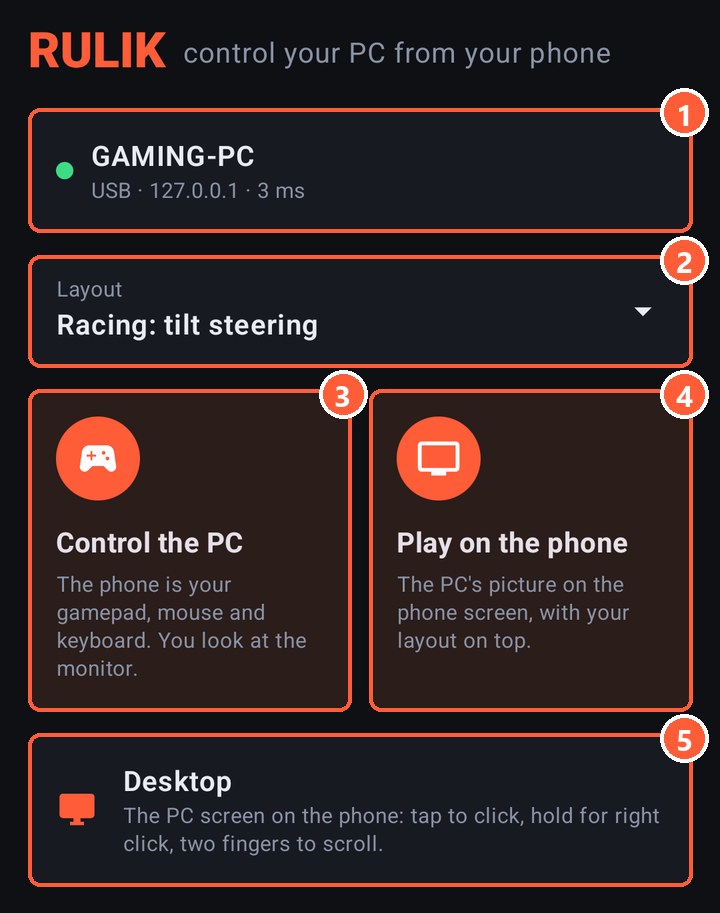
- 2Layout
- 3Control the PC: the phone works as a gamepad
- 4Play on the phone: the PC's picture on the screen
PC not in the list? See PC not found. To connect with a cable, use USB tethering or adb.