The app
Layout editor
Any layout can be reshaped to fit you, or built from scratch.
Opening it
In the layouts list, tap ⋮ and Edit. In the middle of a game, the editor opens with the "⋯" button.
- + adds a button, stick, D-pad or touchpad.
- Drag a control to move it, pull the corner circle to resize it.
- The sliders button opens the control's properties.
- The gear opens the settings of the whole layout.
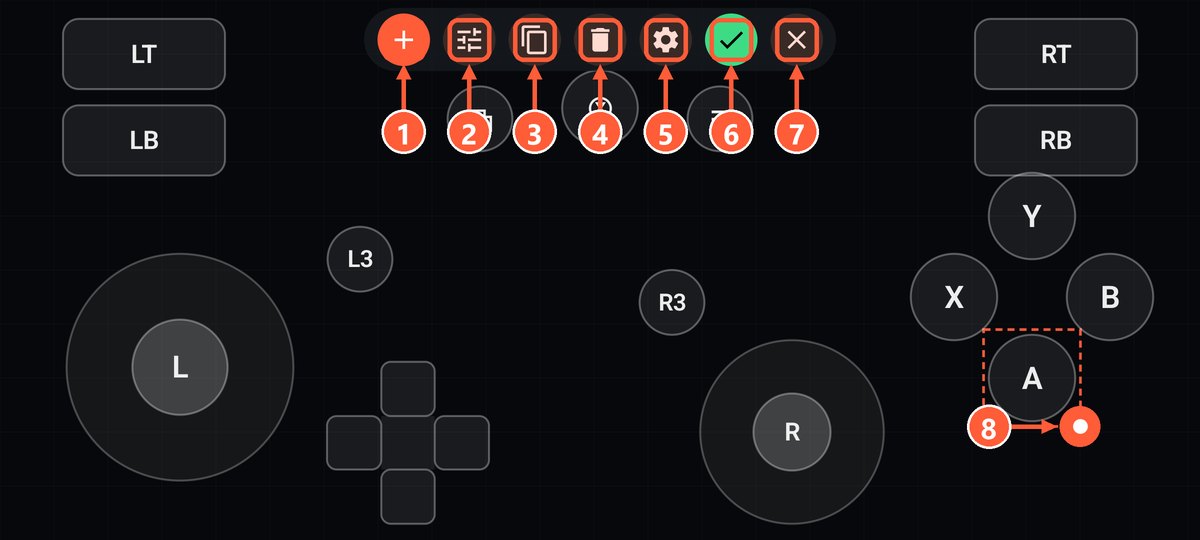
- 1Add a control
- 2Properties of the selected control
- 3Duplicate the control
- 4Delete the control
- 5Layout settings
- 6Save
- 7Close without saving
- 8Drag the circle to resize
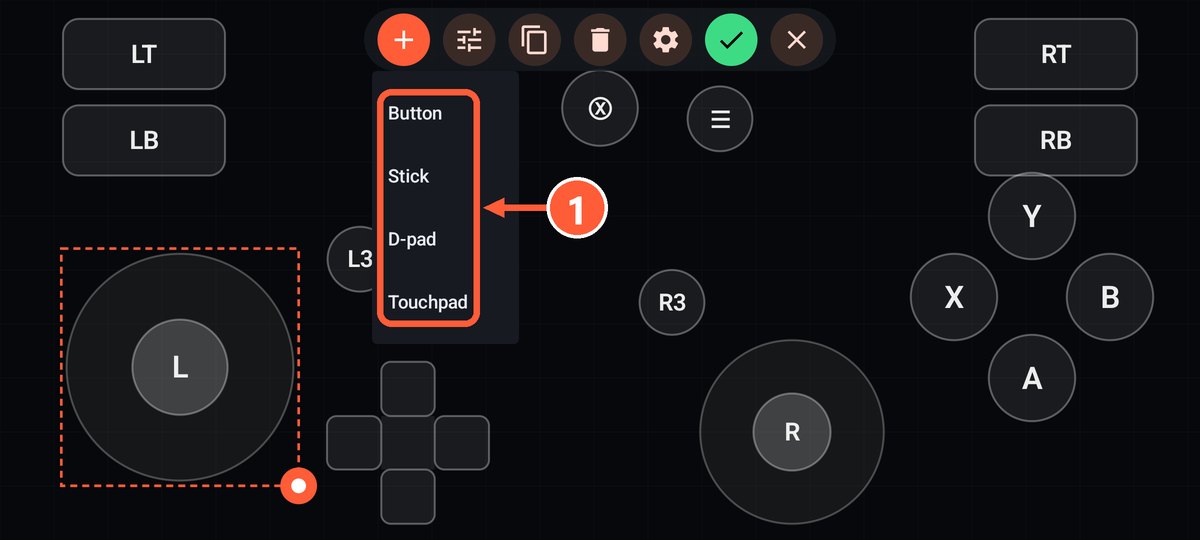
- 1Button, stick, D-pad or touchpad
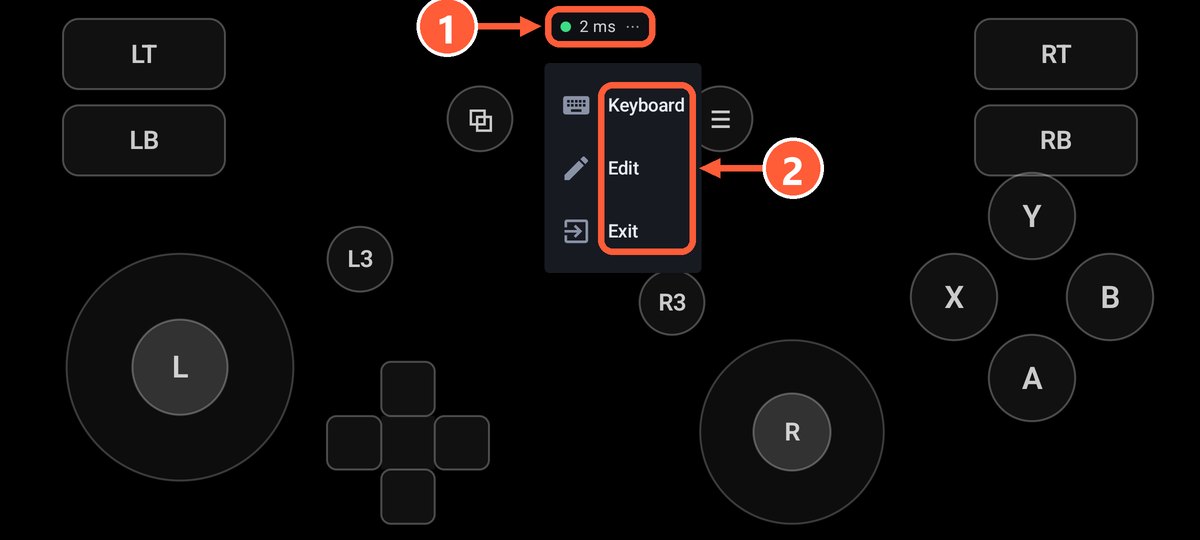
- 1Tap the ping pill
- 2Typing on the PC, layout editor, exit
Button
The Action is picked on one of the tabs:
- Gamepad: any Xbox button, triggers, bumpers, stick clicks.
- Keyboard: any key or a combo of up to 4 keys, like Ctrl+Shift+Esc.
- Mouse: left, right, middle and side buttons, wheel up and down.
- Special: "Gyro while held" and "Open the keyboard" for typing on the PC.
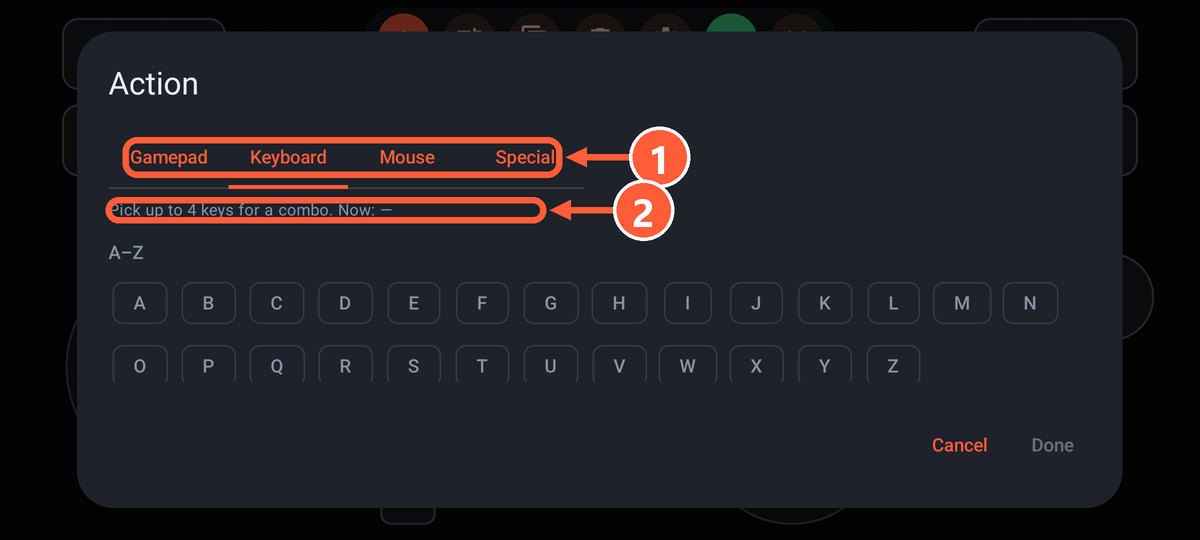
- 1Tabs: gamepad, keyboard, mouse, special
- 2The selected combo: pick up to 4 keys
Mode:
- Hold: pressed while your finger is down.
- Toggle: the first tap presses it, the second releases it. Handy for sprinting or aiming.
- Turbo: while held, the button fires many times a second. The speed is adjustable.
A button also has a label and a shape: circle or rectangle.
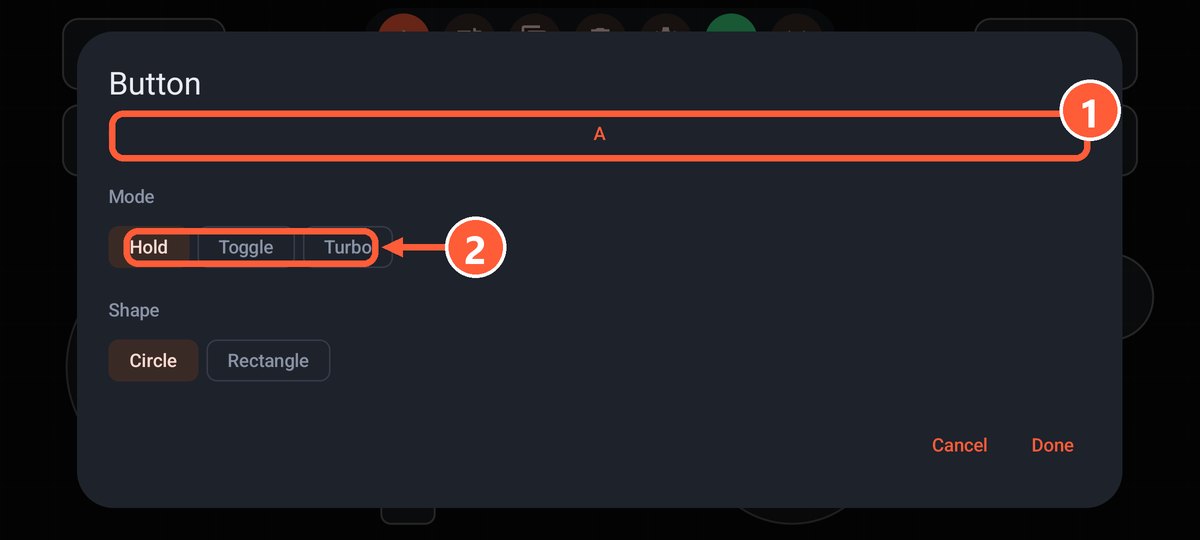
- 1Action: tap to choose
- 2Mode: hold, toggle or turbo
Stick
Output: left stick, right stick, WASD, arrows, D-pad or mouse.
- Floating: the stick centers where you touch, so you don't have to hit it exactly.
- Dead zone: how far you have to push the stick before it reacts.
- Sensitivity: for mouse mode.
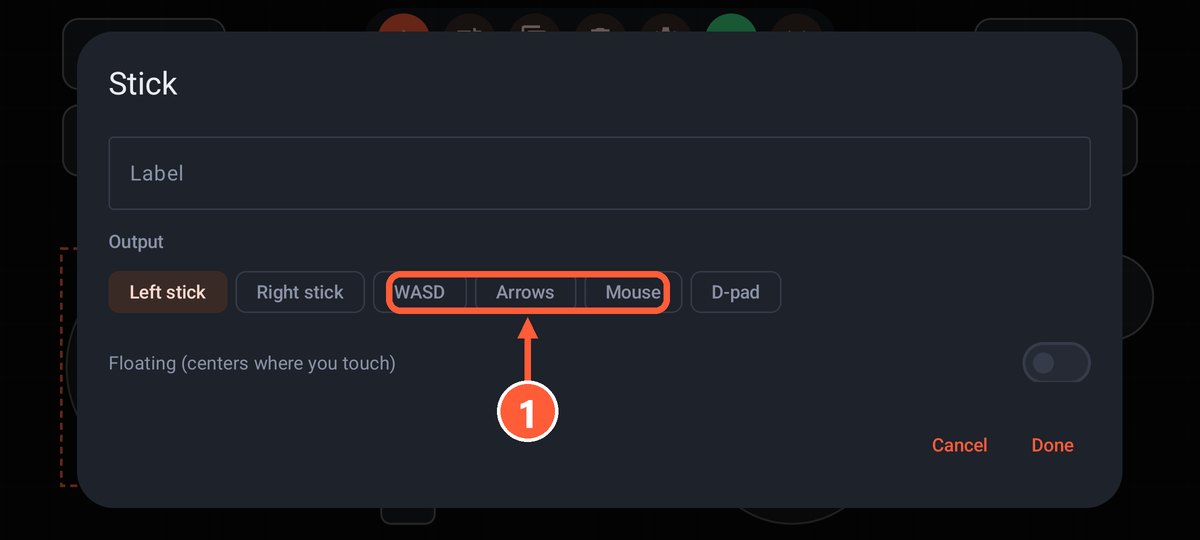
- 1What the stick does: left or right stick, WASD, arrows, mouse, D-pad
D-pad
Works as the gamepad's D-pad, WASD or arrows.
Touchpad
- Mouse: tap to left click, two-finger tap to right click, two fingers to scroll, tap then hold to drag.
- Camera (right stick): swipe to turn the camera like with a stick. Works in any gamepad game.
Layout settings
- Name.
- Portrait: vertical orientation instead of horizontal.
- Vibrate on press.
- Opacity of the controls, so they don't hide the screen.
- Gyro and Tilt: see Gyro, tilt and rumble.
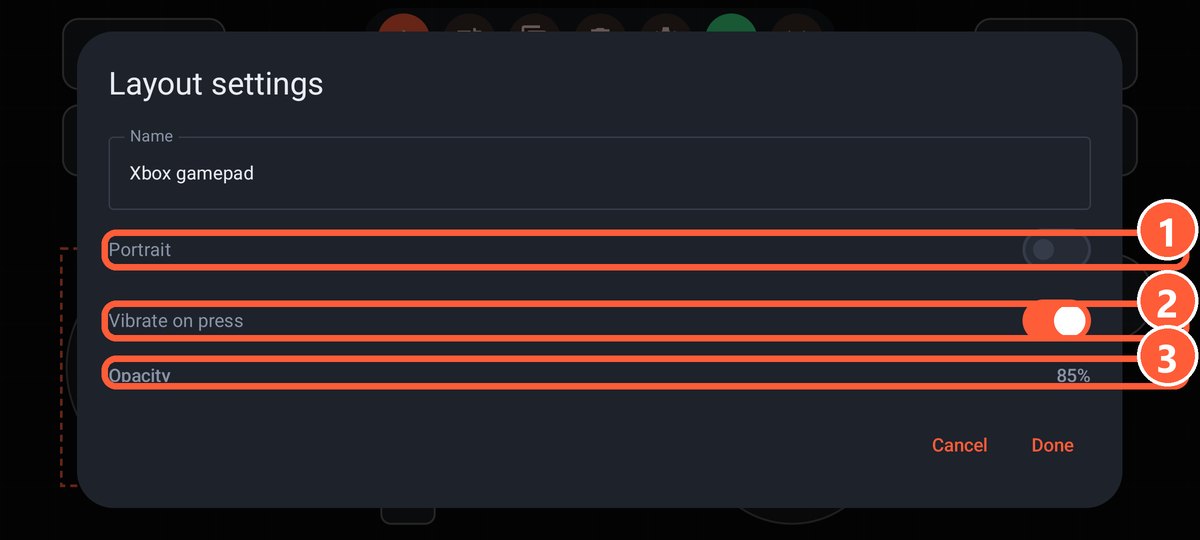
- 1Portrait orientation
- 2Vibrate on press
- 3Opacity of the controls